Multisig Wallet for the Handshake Blockchain
Overview
Similar to Bitcoin, the Handshake blockchain supports multisignature (multisig) wallets. A multisig wallet requires multiple private keys to authorize a transaction instead of just one. This eliminates the single-key vulnerability and greatly improves security. Even if one device or seed phrase is lost or compromised, your funds remain protected as long as the threshold number of keys is intact.
The first user-friendly wallet to support multisig on Handshake is Palm Reader.
GitHub Repository
The official Palm Reader source code is available here:
👉 https://github.com/pinheadmz/palmreader
Required System Packages (Important)
Before installing Palm Reader, make sure your system has the tools needed to compile native dependencies. Run this command:
sudo apt update && sudo apt upgrade -y
sudo apt install -y --no-install-recommends python3-dev python3-venv git make gcc g++ libusb-1.0-0-dev libudev-dev build-essential pkg-config
Installing the Palm Reader Wallet
To set up the Palm Reader wallet for your Handshake multisig configuration, follow the installation steps below.
1. Clone the Palm Reader Repository
Download the latest Palm Reader source code:
git clone https://github.com/pinheadmz/palmreader.git
cd palmreader
2. Install Dependencies
Palm Reader requires a specific Node.js environment (NodeJS v16 recommended). Once your Node version is ready, install the required npm packages:
npm i
This command installs all dependencies needed for Palm Reader to run correctly, including libraries for interacting with Handshake (hsd), multisig transactions, and hardware wallets.
Fixing node-hid Errors
Some systems may encounter errors when installing node-hid, a library needed for Ledger hardware wallet communication. To fix this, you can build node-hid from source inside a Python virtual environment.
Create and Use a Virtual Environment
# Create the virtual environment
python3 -m venv ~/venv-palmreader

# Activate it
source ~/venv-palmreader/bin/activate

# Upgrade essential build tools
pip install --upgrade pip setuptools wheel

# Build node-hid from source
npm install node-hid --build-from-source
To exit a Python virtual environment (venv), use the deactivate command in your terminal or command prompt.
deactivate
After this step, continue with the Palm Reader installation normally.
3. Launch Palm Reader
Start the Palm Reader application with:
./bin/palmreader
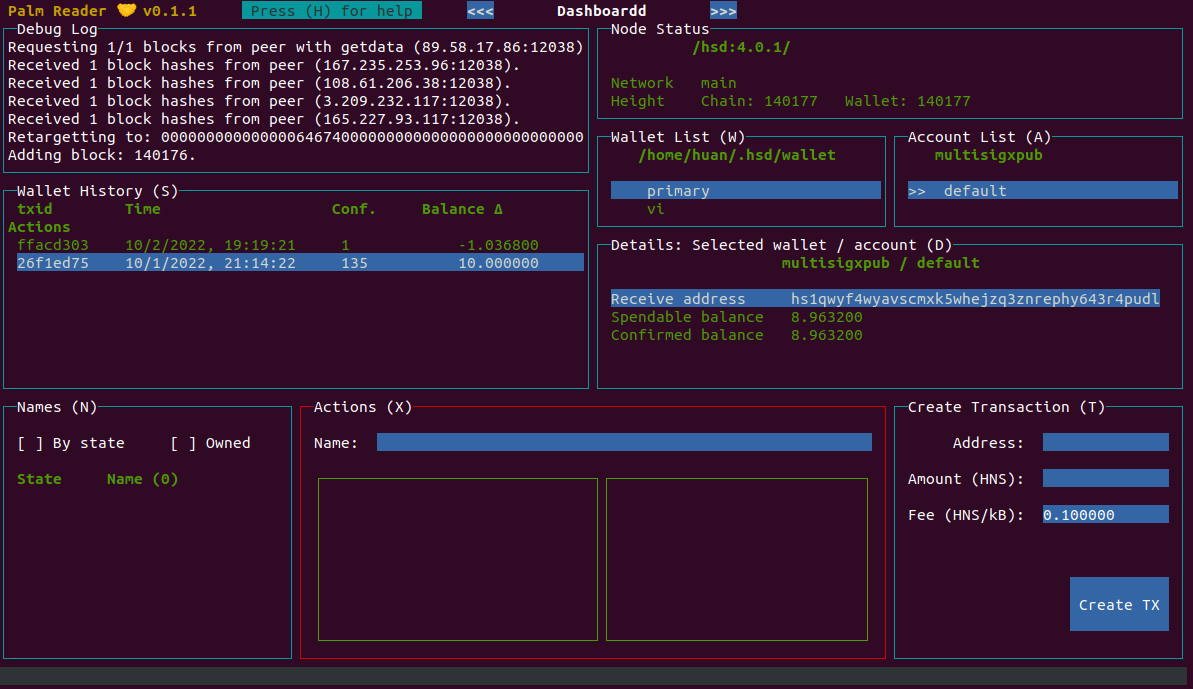
Giao diện Palm Reader v0.1.1 trên Ubuntu
Important: Rescan the Wallet
After adding or importing a wallet, perform a full rescan and wait until synchronization reaches 100%. This step is essential for accurate balance and transaction history.
Using Multisig
Faster Synchronization via SPV Mode
For a faster sync, you can run Handshake Daemon (hsd) in SPV mode using Docker:
docker run --rm -v ~/.hsd:/root/.hsd handshakeorg/hsd:8.0.0 --network main --spv
This speeds up syncing dramatically compared to full node mode or palm reader sync.
Save Your Hexadecimal Blob
Whenever you create or sign a multisig transaction, Palm Reader will generate a hex blob. Save it securely — you will need it for completing or broadcasting the transaction.
Running Palm Reader Over SSH
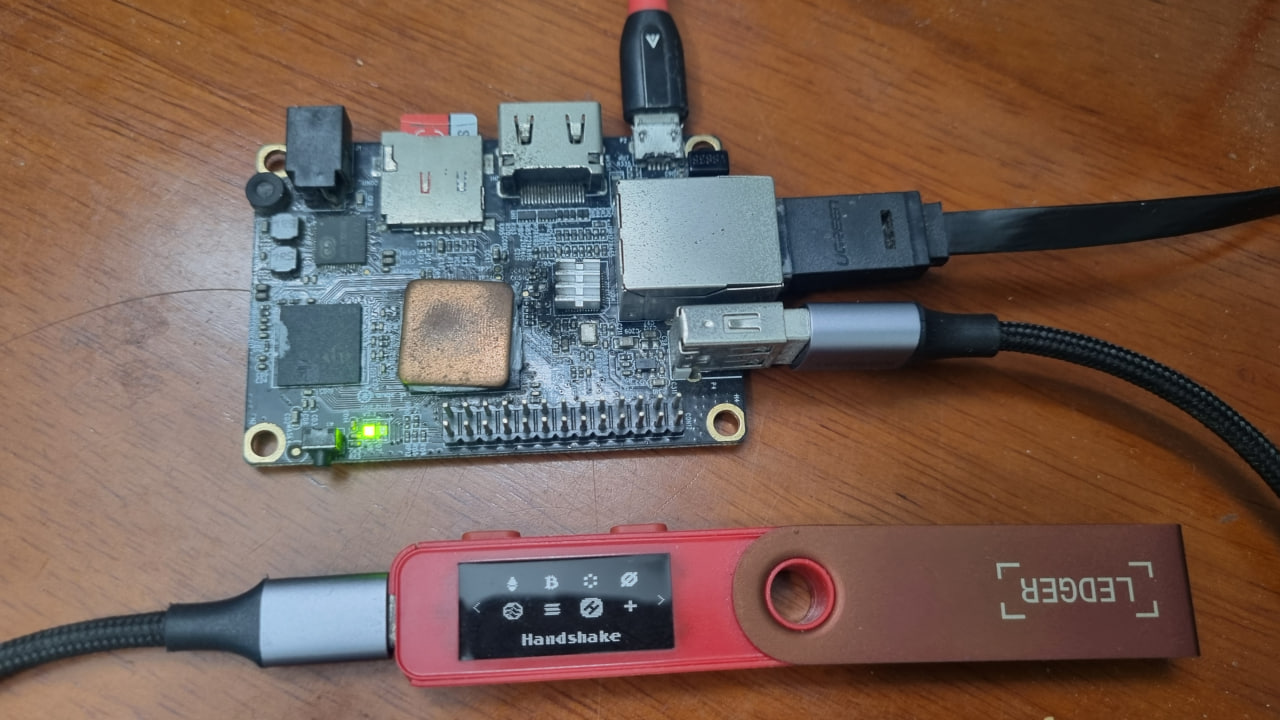
Palm Reader works well over remote SSH sessions, including setups that use a Ledger hardware wallet connected to a mini-PC or SBC (e.g., Orange Pi).
1. Use an SSH Client with X11 Forwarding
For Windows users, MobaXterm is an ideal choice because it has built-in X11 support.
2. Enable X11 Forwarding on the Server
Ensure the following line exists in /etc/ssh/sshd_config:
X11Forwarding yes
Most Debian/Ubuntu systems enable this by default.
3. Install Required Packages
Clipboard tool:
sudo apt install xsel
X11 dependencies:
Debian/Ubuntu:
sudo apt install xauth xfonts-base
Using Palm Reader with a Ledger Hardware Wallet
Set Up Ledger Udev Rules
Run the official udev configuration script so Linux can detect your Ledger device:
wget -q -O - https://raw.githubusercontent.com/LedgerHQ/udev-rules/master/add_udev_rules.sh | sudo bash
Verify USB Connection
Plug in your Ledger and check devices:
lsusb
Fix “cannot open /dev/hidraw0” Errors
If permissions block access, run:
sudo chmod 666 /dev/hidraw*
Backup and Recovery
Handshake wallets are stored in:
~/.hsd
Backup
cd ~/.hsd/
tar -cvf wallet.tar ./wallet
Store this archive in a secure location.
Restore
mkdir ~/.hsd
cd ~/.hsd
tar -xvf wallet.tar
Your wallet will be restored exactly as before.
Docker
docker run -it --rm -v "$HOME/.hsd:/root/.hsd" skywirex/palmreader
Updating hsd and wallet Data
When you need to upgrade hsd and your old wallet version to a newer release, delete the existing data inside the wallet directory, copy your old wallet into it, and then run the following Docker command to migrate the wallet. In this command, --wallet-migrate=x uses the value x specified in the release notes of the corresponding hsd version.
docker run --rm -v ~/.hsd:/root/.hsd handshakeorg/hsd:8.0.0 --network main --spv --wallet-migrate=7
Wait until its completion of migration.